Wednesday, 12 March 2014

Open specific URL in to Browser Intent

1)Take any URL that you want to open

   String url = "http://www.google.com";

2) create intent object 
android.content.Intent.Intent(String action)
Create an intent with a given action. All other fields (data, type, class) are null. Note that the action must be in a namespace because Intents are used globally in the system -- for example the system VIEW action is android.intent.action.VIEW;
Intent ACTION_VIEW

that is
   Intent i = new Intent(Intent.ACTION_VIEW);
3) from that intent object use this Intent android.content.Intent.setData(Uri data) method pass URI into them
   i.setData(Uri.parse(url));

4) And normaly start activity by passing that created intent
   startActivity(i);


GOOD LUCK

Monday, 6 January 2014

Transparent Color in Android

To make any color as a transparent in android. 


Write in your resource file 
<color name="your_color_name">#CCE4D5FF</color>

your hex color code with RGB combination with 6 character 

but if you need to make transparency in to the color put 2 more character. 

To know follow the steps.

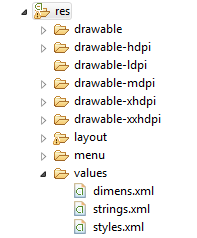
First go in to the Resource (res) folder 


Then go in to the value folder any xml file

Write this attribute 

<color name="your_color_name">#CCE4D5FF</color>

This red highlighted code is for hexa color 

To know hexa color please folow this link RGB color

And Yellow highlighted code is for transparency.

For more transparency by percentage. 

100% — FF

95% — F2

90% — E6

85% — D9

80% — CC

75% — BF

70% — B3

65% — A6

60% — 99

55% — 8C

50% — 80

45% — 73

40% — 66

35% — 59

30% — 4D

25% — 40

20% — 33

15% — 26

10% — 1A

5% — 0D

0% — 00


All The best........


Friday, 30 August 2013

JSON Parsing in Android

JSON is a very condense data exchange format. Android includes the json.org libraries which allow to work easily with JSON files.

  Crate This Class For Parsing the URL

public class JSONParser
{
    static InputStream is = null;
    static JSONObject jObj = null;
    static String json = "";

    public JSONObject getJSONFromUrl(String url){
        // Making HTTP request
        try {
            // defaultHttpClient
            DefaultHttpClient httpClient = new DefaultHttpClient();
            //Also try HttpPost httpPost=new HttPost();
            HttpGet httpget = new HttpGet(url);
            //Execute get/post object through httpClient and get HttpResponse
            HttpResponse httpResponse = httpClient.execute(httpget);
            //get the Entity
            HttpEntity httpEntity = httpResponse.getEntity();
            //get the InputStream throug get Content....
            is = httpEntity.getContent();
        }catch (UnsupportedEncodingException e) {
            e.printStackTrace();
        }catch (ClientProtocolException e) {
            e.printStackTrace();
        }catch (IOException e) {
            e.printStackTrace();
        }

        try{
            BufferedReader reader = new BufferedReader(new InputStreamReader(is, "iso-8859-1"), 8);
            StringBuilder sb = new StringBuilder();
            String line = null;
            while ((line = reader.readLine()) != null){
                sb.append(line + "\n");
            }
            is.close();
            json = sb.toString();
        }catch (Exception e) {
            Log.e("Buffer Error", "Error converting result " + e.toString());
        }
        // try parse the string to a JSON object
        try {
            jObj = new JSONObject(json);
        }catch (JSONException e) {
            Log.e("JSON Parser", "Error parsing data " + e.toString());
        }
        // return JSON String
        return jObj;
    }
}


Call From the Activity


JSONParser jParser = new JSONParser();

JSONObject jsonObj = jParser.getJSONFromUrl("http://www.example.com/myws/getData.html?id=12");

SONArray  jsonArray= jsonObj.getJSONArray("Name of the object");


Below is the basic jason format:

 {
     "contacts"
     [ 
        {                 
              "id": "AP9099", 
              "name": "Alpan Patel",                
              "email": "alpanpatel4am@gmail.com"
               "address": "Valsad",                     
              "gender" : "Male",
               "phone": {                    
                      "mobile": "+91 XXXX XXXX XX",
                        "home": "XX XXXXXXX",                    
                      "office": "XX XXXXXX"
                                }         
          },
     ] 
}


Monday, 22 April 2013

How to Create Google Map API V2

Step for Making Google Map API Version 2


1)     Creating the SHA-1 for your signature key.
    ----->     The Eclipse debug key for signing your application can be found in the userhome/.android/debug.keystore file.
        eg) C:\Users\nil pc43\.android\debug.keystore
   
    ----->    C:\Program Files\Java\jdk1.7.0_01\bin\keytool.exe -v -list -alias androiddebugkey -keystore "C:\Users\Info 1234\.android\debug.keystore" -storepass             android -keypass android
       
        Example)

            C:\Program Files\Java\jdk1.7.0_01\bin>keytool.exe -v -list -alias androiddebugkey -keystore "c:\Users\nil pc43\.android\deb
            ug.keystore" -storepass android -keypass android
            Alias name: androiddebugkey
            Creation date: Apr 4, 2013
            Entry type: PrivateKeyEntry
            Certificate chain length: 1
            Certificate[1]:
            Owner: CN=Android Debug, O=Android, C=US
            Issuer: CN=Android Debug, O=Android, C=US
            Serial number: 4a5b5c6d
                    Valid from: Thu Apr 04 18:33:13 IST 2013 until: Sat Mar 28 18:33:13 IST 2043
            Certificate fingerprints:
                        MD5:  51:CE:5C:07:05:31:98:6A:D5:7C:24:B1:B3:EC:22:A3
                     SHA1: B2:68:A7:D6:3A:FC:8F:15:8D:3E:1F:4A:E8:99:CE:8D:F5:28:07:4D
                      SHA256: 5B:5B:FE:7B:92:7F:06:53:1E:28:BB:D0:E5:CB:05:46:B0:81:76:CC:61:87:97:FA:19:68:B6:C1:08:E8:D6:D9
                      Signature algorithm name: SHA256withRSA
                      Version: 3

    
2)    Register with the Google APIs Console

    -----> https://code.google.com/apis/console/
       
    -----> Go to Services
       
        Then Activate(ON) the Google Maps Android API v2.
   
3)    Create key for your application
   
    -----> sELECT  API ACCESS


        You need later to register your application via its package in this console together
        with the SHA-1 fingerprint of your signature key. For this you     select the entry and
        click on the API Access entry. Afterwards click on the Create new Android key...entry.
   
    -----> Click on "Create New Android KEY"
   
    -----> Enter your SHA-1 fingerprint and the package of your application separated by a semicolon.
       
           For example you can use the com.example.mymaps package. (your SHA-1 key;package Name)
   
4)    Change Your Manifist.xml and JAVA File according below link
   
    -----> please Reffer this Link
   
            http://www.vogella.com/articles/AndroidGoogleMaps/article.html

5)    Now Create new KeyStore File and APK file For your project.

    ----->C:\Program Files\Java\jdk1.7.0_01\bin>keytool -list -alias "your alias name" -keystore  "path that have keystor file of yor application"
        Enter keystore password: <pasword of your keystore>
        mapExample, Apr 18, 2013, PrivateKeyEntry,
        Certificate fingerprint (SHA1): 71:EF:B0:6A:A8:BG:E5:61:E9:23:D0:F2:1E:9D:D0:6F:A4:70:0F:A9
   
    -----> Now you have new SHA-1 KEY

    -----> With this SHA-1 KEY, Follow the Step no 4

6)    Now you will get NEW google map API KEY
   
    Now use this key in to Manifeast.xml file (AS SHOWN IN STEM NO 4)
   
    <meta-data
            android:name="com.google.android.maps.v2.API_KEY"
            android:value="NEW GOOGLE MAP API KEY" />

7)     Now Create New APK FILE of you APLICATION with the use the existing keystore